
TRAIN WITH PURPOSE.
PERFORM UNDER PRESSURE.
The digital training companion for serious shooters. Track drills, analyze performance, master your craft.
“If you refuse to fight, you are DEFENSELESS.
If you fight without purpose, you are DANGEROUS.
If you fight with discipline, honor, and a cause greater than yourself, you are a WARRIOR.
IF NOT I, THEN WHO?”
BUILT FOR THE RANGE
Everything you need to train with purpose and measure what matters.
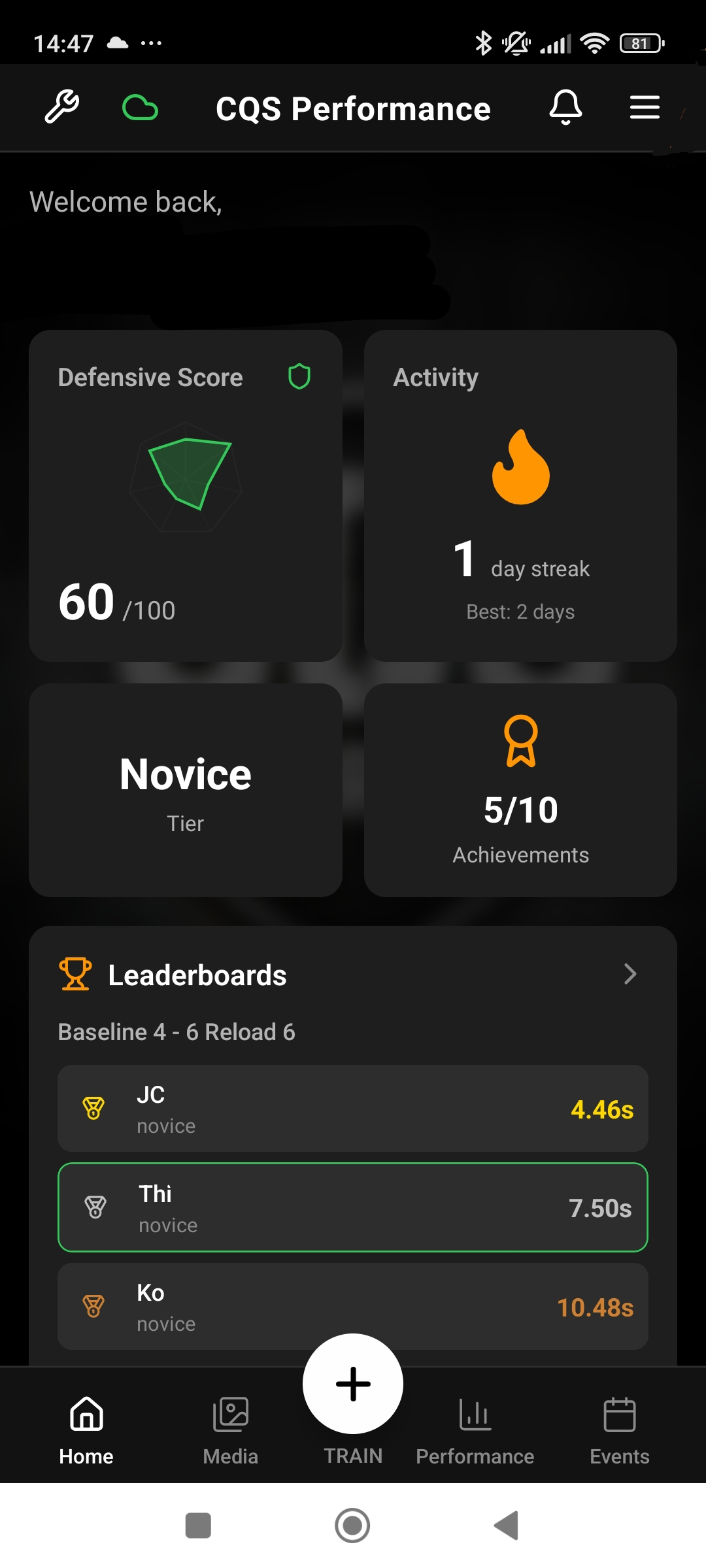
STRUCTURED TRAINING
15+ courses, 30+ drills. Novice to Master. Track your progression through each course.
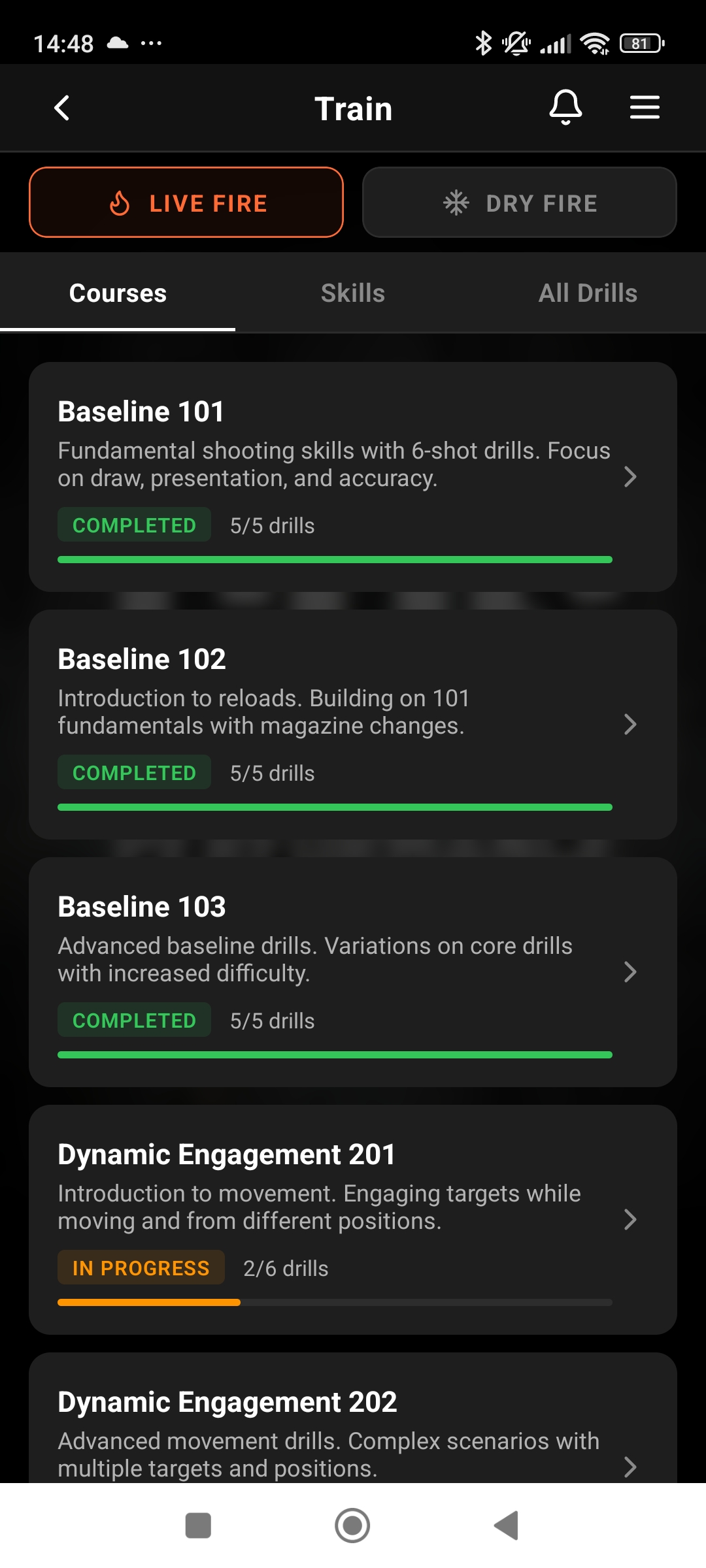
ANALYTICS & INSIGHTS
Survival Index, capability radar, gear comparisons. Know exactly where you stand.
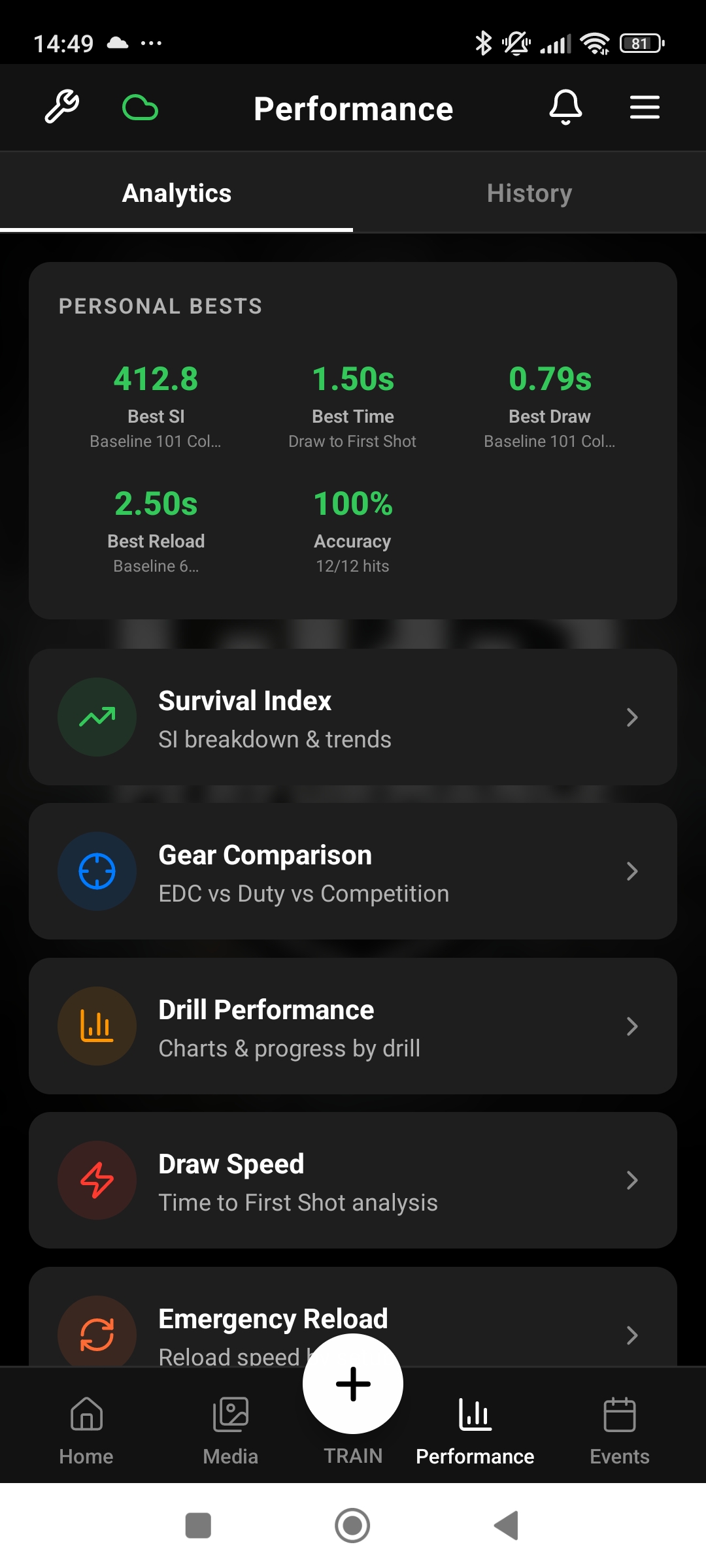
ARMORY MANAGEMENT
Track every weapon, setup, and round count. Link ammo, monitor maintenance.
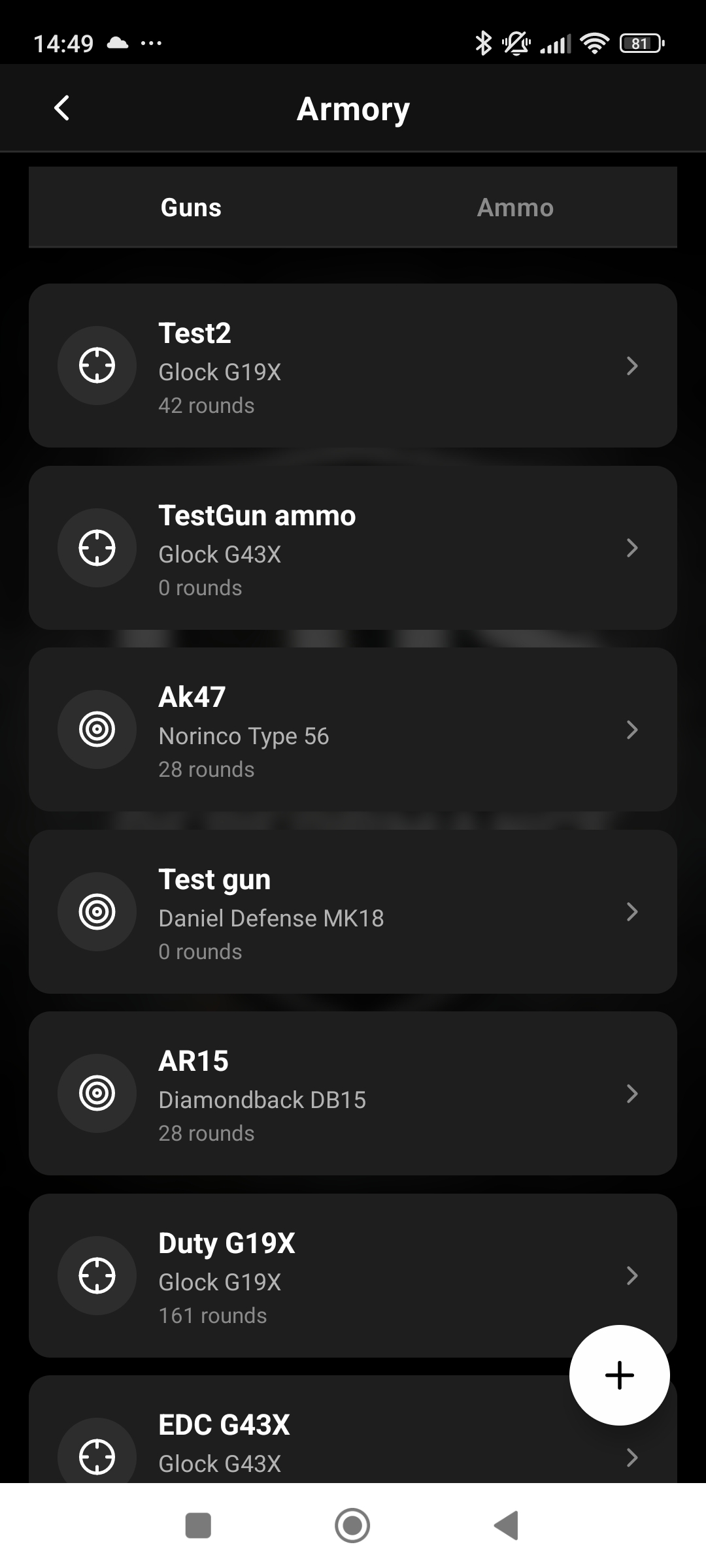
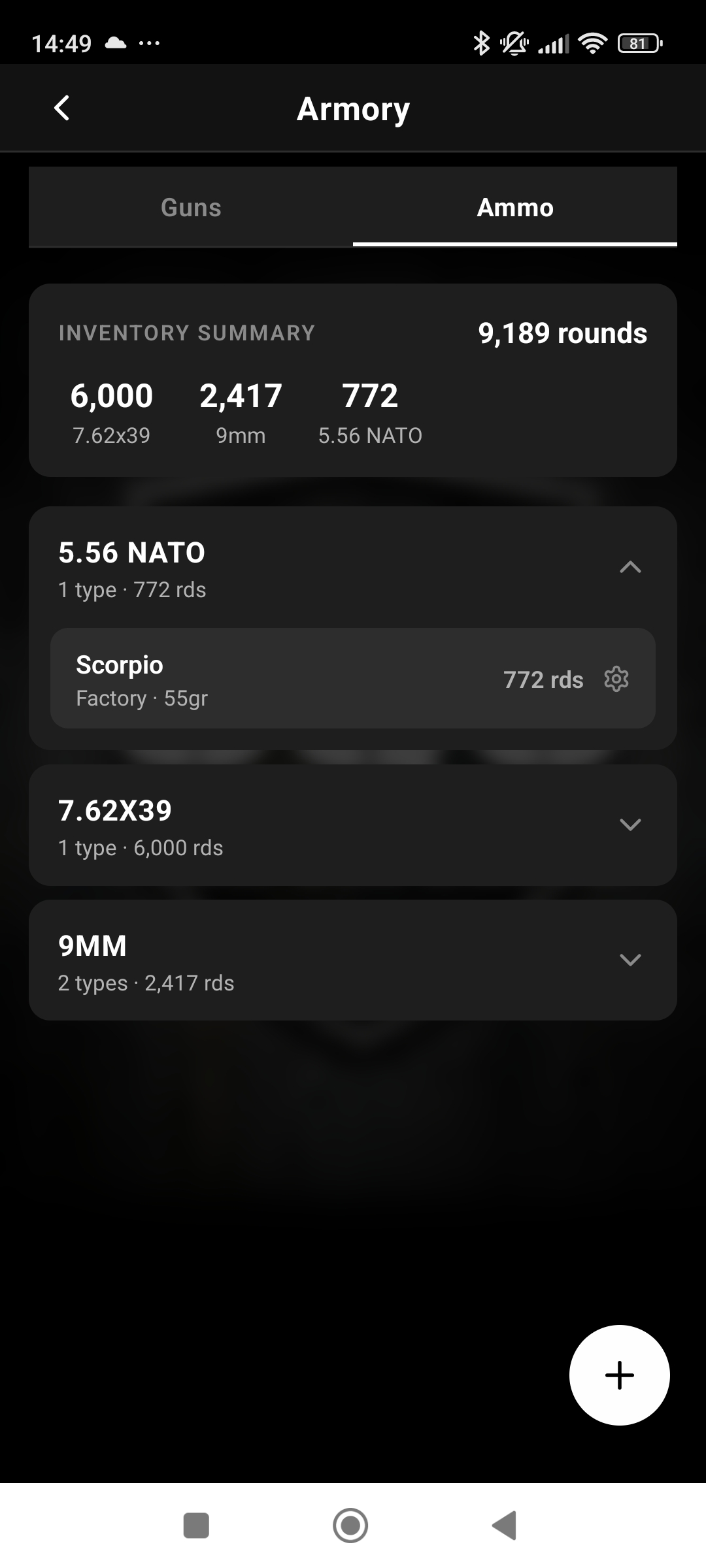
AMMO INVENTORY
Track ammo stock levels by caliber and brand. Rounds auto-deduct when you log drills. Per-weapon round counts keep your armory honest.
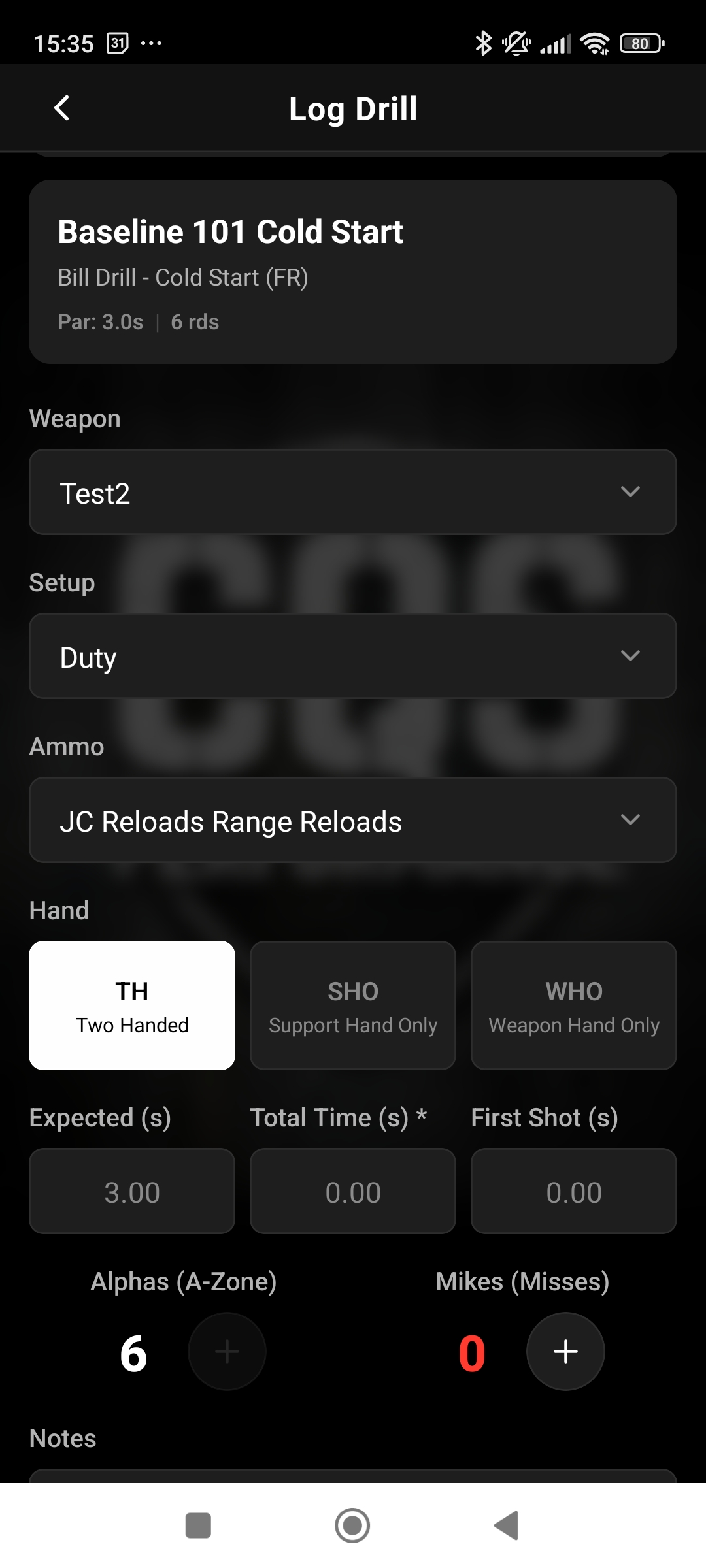
DRILL LOGGING
Log times, alphas, mikes. Personal bests tracked automatically. Built-in par timer.
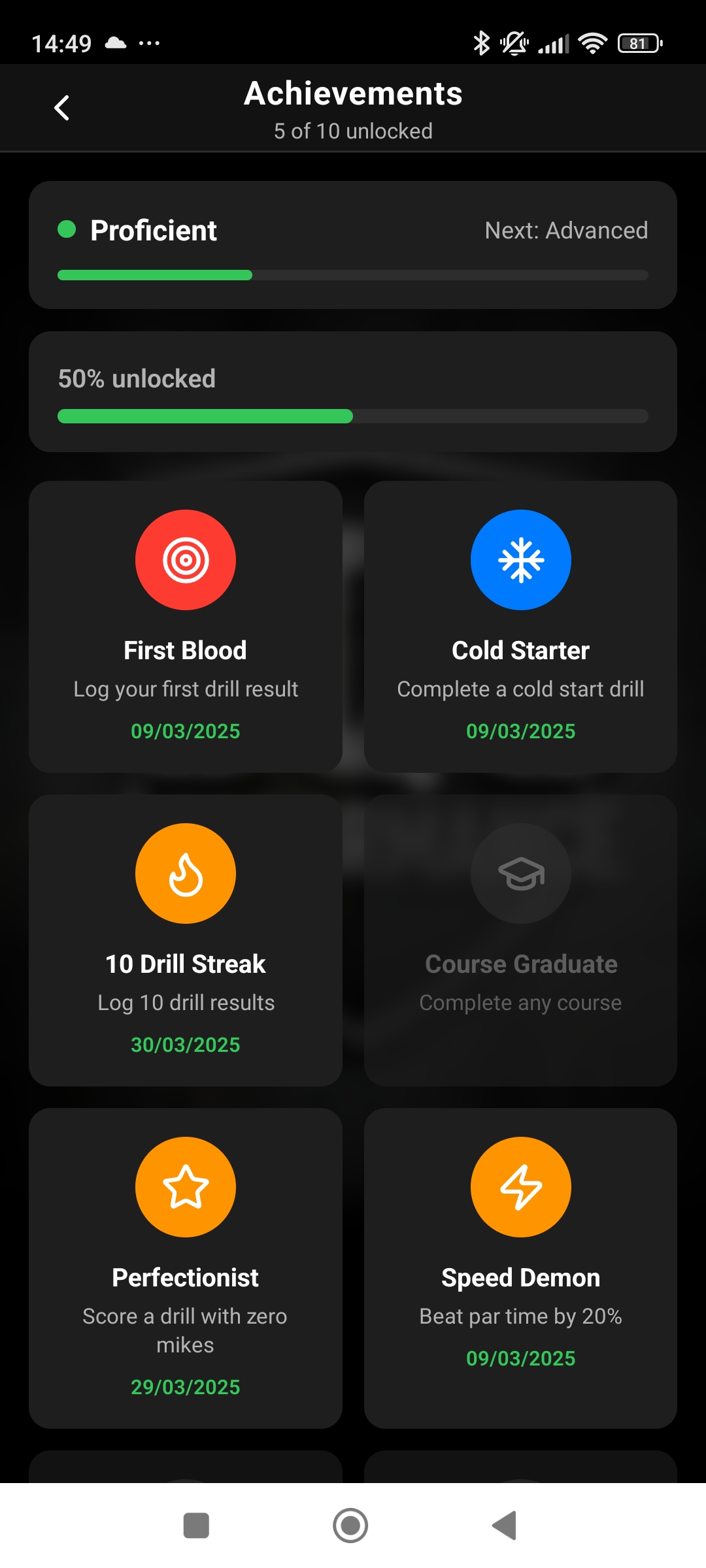
ACHIEVEMENTS
7-tier ranking system from Novice to Master. Achievements earned through real performance.
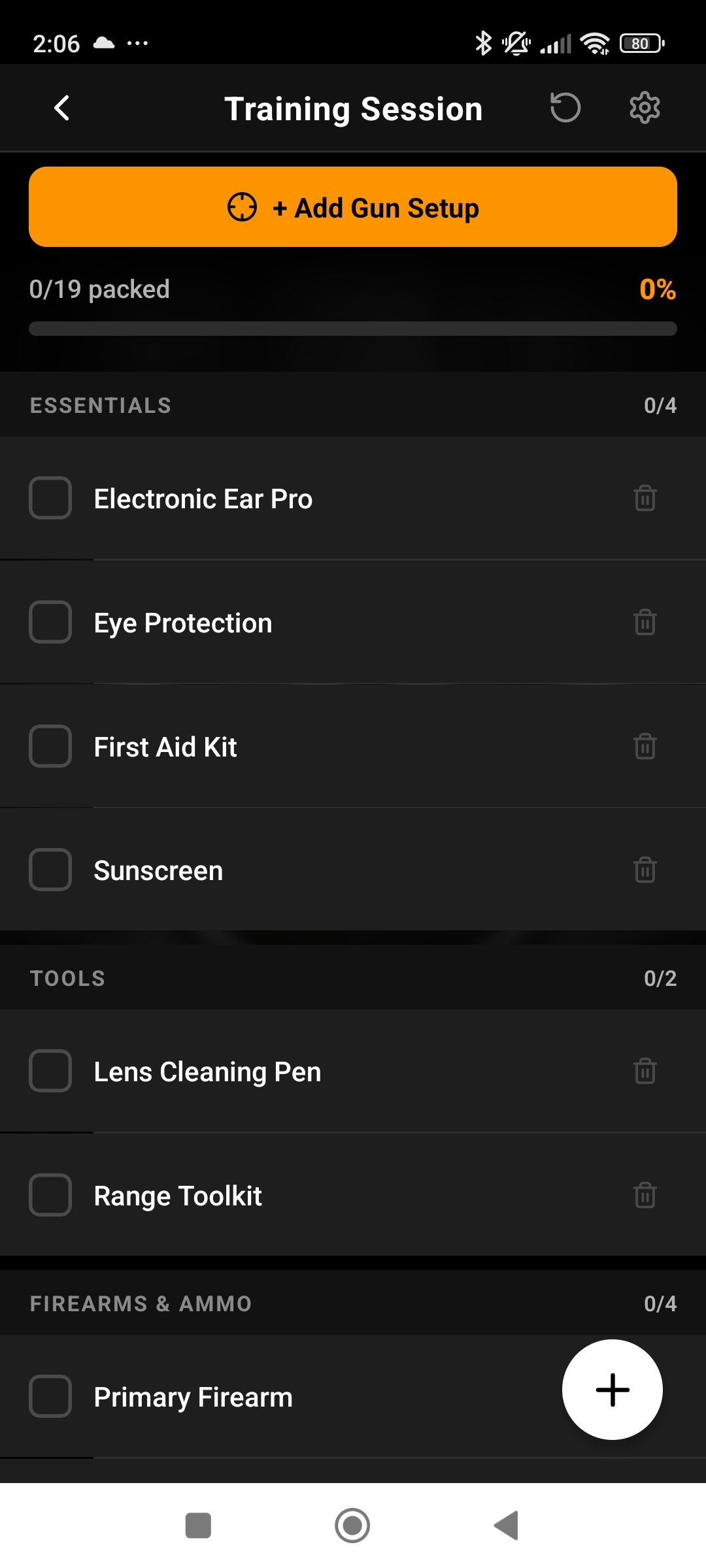
SMART PACKLIST
Never forget gear on range day. Categorized checklists for PPE, ammo, admin, and more. Link gun setups and track progress.
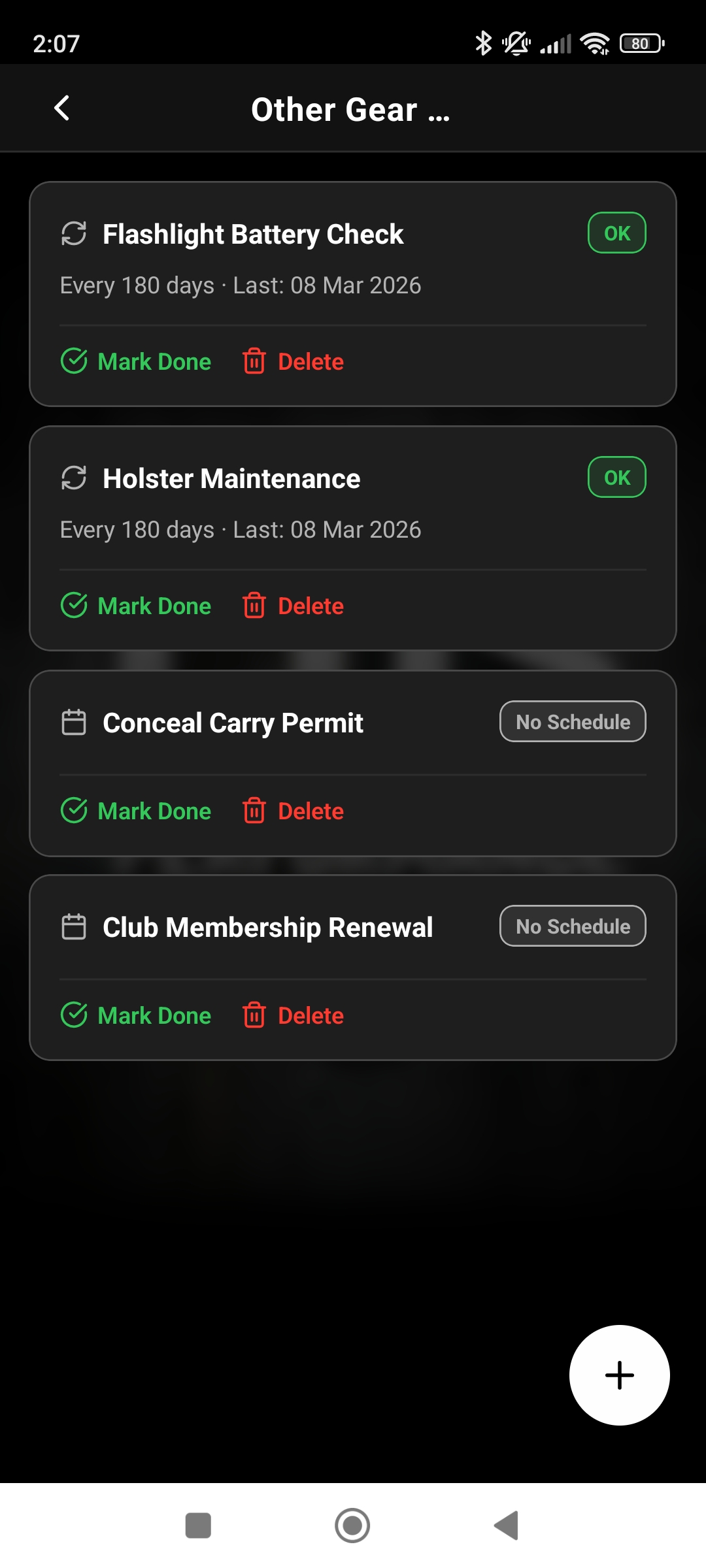
GEAR REMINDERS
Track medical supply expiry dates and gear maintenance schedules. Alerts for medical, permits, batteries, and more.
BLUETOOTH TIMERS
Pair a smart shot timer and stop typing times at the range. The app talks to both the same way — one timer connected at a time.

WORKS WITH SG SMART TIMERS
Connect an SG Timer Sport or GO over Bluetooth. Shot times, reloads and transitions flow straight into your drill log — no typing at the range. See how it works →
SG Timer is a product of Shooters Global.

WORKS WITH SPECIAL PIE TIMERS
Connect a Special Pie M1A2 over Bluetooth. Start it from the drill log form, watch every shot land live, and roll a whole range day into one Open Training session. See how it works →
M1A2 is a product of Special Pie.
HOW IT WORKS
ADD YOUR WEAPON
Register your firearms, setups, and ammo in the armory.
LOG YOUR DRILLS
Run drills, log results. Times, accuracy, hand, method — all captured.
TRACK YOUR GROWTH
Watch your Survival Index climb. Analyze trends, beat personal bests.
Offline-first — works at the range with no signal
Syncs across devices automatically
Dashboard
FREQUENTLY ASKED
Answers to the questions we hear most.
Getting Started
HOW DO I CREATE AN ACCOUNT?
Open the app and tap Sign Up on the login screen. You can register with Google (Android) or Apple (iOS), or with an email and password. Once registered, your data is stored on the device and synced to the cloud whenever you're online.
WHAT'S THE DIFFERENCE BETWEEN HOT AND COLD FIRE MODE?
Fire Mode is a global toggle in the bottom navigation that changes the app's visual theme. HOT uses the Covert (dark) theme — designed for live-fire range sessions where you need a high-contrast, low-glare display. COLD uses the Overt (light) theme — better for indoor planning, reviewing analytics, and reading. It doesn't affect your data or scoring.
DOES THE APP WORK WITHOUT INTERNET?
Yes. Every screen — logging drills, reviewing analytics, managing your armory — works fully offline. Your data is saved to the device first, then synced to the cloud in the background as soon as you have a connection.
Subscription, Trial & Billing
WHAT'S THE DIFFERENCE BETWEEN THE FREE TIER AND PRO?
Without an active Pro subscription you still get the Dashboard, Settings, Help & Support, the Event Calendar, and drills from Baseline 101 — enough to evaluate the app. Pro unlocks everything else: the rest of the Baseline, Dynamic and Defensive courses, Performance & Analytics, the full drill History, the Armory (weapons and ammo tracking), the Smart Packlist, Achievements (The Rack), the Hot Range leaderboard, Goals, The Cache media gallery, Utilities (Par Timer, the SG and Special Pie timer connections, HF Calculator), Notifications, and Supply Drop. Your data is preserved either way — if a subscription lapses you don't lose anything, you simply lose access to the Pro-gated screens until you resubscribe.
HOW DO I SUBSCRIBE?
Open the app. If you don't have an active subscription you'll see the paywall — pick Monthly or Annual and tap Subscribe. The purchase is processed by Apple (on iPhone / iPad) or Google (on Android) using whatever payment method is on your store account. CQS Performance does not sell subscriptions through this website — it has to be done in-app so Apple and Google can manage the billing.
HOW MUCH DOES PRO COST?
The current price in your local currency is shown on the in-app paywall. The Annual plan works out to roughly 17% cheaper per month than rolling Monthly. We don't list specific prices on the website because Apple and Google apply regional pricing and currency conversions that we don't control.
WILL I BE CHARGED IN A FOREIGN CURRENCY, OR MY LOCAL ONE?
You're charged in your local currency. Apple and Google detect your store account's country and apply regional pricing with the conversion built in, so the amount shown on the paywall is the amount you pay — there's no separate foreign-currency conversion or forex fee from us. The only exception is if your card's billing currency differs from your store-account country, in which case your bank (not CQS, Apple, or Google) may apply its own conversion.
CAN I PAY WITH AN APPLE GIFT CARD OR GOOGLE PLAY CREDIT?
Yes. On iPhone / iPad the subscription is charged to your Apple Account balance first, so any Apple Gift Card you've redeemed goes toward it. On Android, Google Play balance (from a Play gift card) works the same way. Note that for the free trial, Apple and Google still require a payment method on file at sign-up because it auto-renews after 14 days. Vouchers are redeemed and managed entirely through Apple or Google — we can't apply or troubleshoot them from our side.
IS THERE A FREE TRIAL?
Yes — Annual currently includes a 14-day free trial through the App Store / Play Store. When it's available you'll see a "Start Free Trial" button on the paywall instead of "Subscribe". Apple and Google both require payment information up front for trials, and the trial auto-converts to a paid subscription at the end of the 14 days unless you cancel beforehand. The trial is one-per-account for life — once you've used it, the button changes back to "Subscribe".
I JUST PAID BUT THE APP STILL SHOWS THE PAYWALL — WHAT NOW?
Tap Restore Purchases at the bottom of the paywall. This re-checks your Apple ID or Google account for active subscriptions and grants the entitlement to your CQS account. Restore is also what you use after reinstalling the app, switching phones, or signing in on a second device with the same plan.
HOW DO I CANCEL MY SUBSCRIPTION?
Because subscriptions are handled by Apple or Google (not by us), cancellation has to be done in their subscription settings — not in the CQS app and not on this website. iPhone / iPad: open Settings > [your name] > Subscriptions > CQS Performance > Cancel Subscription. Android: open the Google Play app > tap your profile icon > Payments & subscriptions > Subscriptions > CQS Performance > Cancel subscription. You keep Pro access until the end of the current billing period; after that the app reverts to the free tier.
I CANCELLED — WILL I LOSE MY DRILL HISTORY, WEAPONS, AND STATS?
No. None of your data is deleted when a subscription ends. Drill results, personal bests, weapons, ammo, media, and your Survival Index history all stay on your device and in the cloud. When you resubscribe, everything is exactly where you left it. You only lose access to the Pro-gated screens while you're on the free tier — the underlying data sits untouched.
HOW DO I SUBSCRIBE AGAIN AFTER CANCELLING?
Open the app once your previous subscription has lapsed. The paywall reappears with a "Your Subscription Has Expired" message. Pick a plan and tap Subscribe — the purchase flows through your Apple ID or Google account the same way it did the first time. There's no separate re-subscribe path; it's the same paywall.
I SWITCHED FROM IPHONE TO ANDROID (OR VICE VERSA) — DOES MY SUBSCRIPTION TRANSFER?
Your CQS Performance account and all your data transfer — just sign in with the same login. The subscription itself does not transfer between Apple and Google, because they are separate payment systems. If you bought your subscription on iPhone and you keep that Apple subscription active, it continues to entitle your account on Android too (the entitlement is tied to your CQS account, not the device). If you cancel on Apple and only use Android going forward, you'll need to subscribe again through Google. The same applies in reverse.
HOW DO I UPDATE MY PAYMENT METHOD?
Through Apple or Google, not through us. iPhone / iPad: Settings > [your name] > Payment & Shipping. Android: Google Play > profile icon > Payments & subscriptions > Payment methods. Any change applies to every subscription on that account, not just CQS Performance.
CAN I GET A REFUND?
Refunds are handled by Apple or Google because they processed the original purchase — we don't have the ability to issue them from our side. Apple: visit reportaproblem.apple.com, sign in, find the CQS Performance charge, and request a refund. Android: in the Google Play app or play.google.com, open Account > Order history, find the CQS Performance subscription, and tap Request a refund. Approval is at Apple's or Google's discretion based on their refund policies.
WILL THE SUBSCRIPTION PRICE CHANGE WITHOUT WARNING?
No. If pricing ever changes, Apple and Google notify subscribers in advance and require explicit consent before the new price takes effect. You won't be charged a higher amount without first agreeing to it — existing subscriptions continue at the original price until you re-confirm.
Armory — Weapons
HOW DO I ADD A WEAPON?
From the bottom Menu (hamburger icon), tap Armory. Make sure the Guns tab is selected, then tap the + button. Fill in the name, type (pistol/rifle), make, model, and caliber. After saving, you'll be prompted to create a setup for it (this is mandatory — see Setups below).
WHY DO I HAVE TO CREATE A SETUP RIGHT AFTER ADDING A WEAPON?
Your Survival Index (SI) and tier are scored against a specific (weapon + setup) pair, not the weapon alone. Until at least one setup exists, the weapon can't contribute to your analytics. The app blocks the back button on the setup screen until you save or discard the weapon, to prevent orphaned guns sitting in your armory without scoring.
CAN I EDIT A WEAPON'S CALIBER LATER?
Yes — open the weapon from Armory > Guns, tap to view its detail, then tap Edit. Be aware that changing the caliber may affect which ammo can be linked to it (ammo is filtered by matching caliber).
WHAT IS THE PRIMARY WEAPON?
Your primary weapon is the gun whose performance defines your overall Survival Index and tier. You can only have one primary at a time. The choice is technically (weapon + setup), so a gun with two setups counts as two distinct primary options. Set it on the setup detail screen via Set as Primary.
Armory — Setups
WHAT IS A SETUP?
A setup represents a specific configuration of a weapon — its optic, holster, light, muzzle device, and (for pistols) carry position. A single gun can have multiple setups (e.g., Competition, EDC, Home Defense) so you can track how your performance differs across them.
HOW DO I CREATE A SETUP?
From Armory > Guns, tap a weapon, then Add Setup (or you'll be prompted automatically when you create a new weapon). Give the setup a name, optionally add gear details (optic, holster, light, muzzle device, carry position), then save. The first setup you ever create is automatically marked as your Primary.
WHAT'S THE DIFFERENCE BETWEEN DEFAULT DRILL SETUP AND PRIMARY SETUP?
They sound similar but do different things. Default Drill Setup is a per-weapon convenience: when you pick that weapon while logging a drill, this setup is auto-selected in the form. Each gun can have its own default. Primary Setup is a per-user, account-wide designation: it's the single (weapon + setup) pair your Survival Index and tier are scored against. You have exactly one across your entire armory. In short — Default is about making logging faster. Primary is about which gear your overall score reflects.
CAN I CHANGE MY PRIMARY SETUP?
Yes. Open any setup's detail screen and tap Set as Primary. Your SI and tier are recalculated from drills logged with that (weapon + setup) combination. Switching primaries doesn't delete the previous one — its data remains, it just no longer drives your overall score.
WHY DID MY SURVIVAL INDEX CHANGE WHEN I SWITCHED PRIMARY SETUP?
Because SI is scoped to your primary (weapon + setup), switching means scoring is now based on a different set of drill results. If you've logged fewer drills with the new primary, expect more volatility until you build up a result history with it.
WHY ARE CARRY POSITIONS ONLY FOR PISTOLS?
Carry positions describe how a holster is worn — and rifles don't use holsters, so the field is hidden for rifle setups. For pistols you can choose between OWB (Outside the Waistband — holster mounted on the outside of the belt; common for range and duty use, easier draw but less concealment), IWB (Inside the Waistband — holster tucked inside the pants behind the belt for better concealment, typically carried at the 3-5 o'clock position), and AIWB (Appendix Inside the Waistband — IWB carried at the front of the body at the 1-2 o'clock position; fastest draw for most shooters and popular for concealed carry).
Armory — Ammo Inventory
HOW DO I TRACK MY AMMO?
Go to Armory and switch to the Ammo tab. Tap + to add a batch: brand, caliber, type (Factory / Range Reloads / Competition Loads / Other), and quantity. You can use the +/- buttons or swipe to delete batches later.
DOES THE APP DEDUCT AMMO AUTOMATICALLY?
Yes — if you've linked ammo to the drill. When you log a drill on a weapon, the picker pre-selects that weapon's default ammo (you can change it). On submit, the rounds fired are deducted from the linked batch automatically. If you don't pick an ammo, no deduction happens.
WHY DOESN'T A PARTICULAR AMMO SHOW UP WHEN LOGGING A DRILL?
Ammo is filtered by caliber to match the weapon. If a 9mm gun is selected, only 9mm ammo batches appear. Check the caliber on both the weapon and the ammo batch.
HOW DO I SET A DEFAULT AMMO FOR A WEAPON?
When adding or editing a weapon, scroll to the Default Ammo picker. Only ammo with a matching caliber will appear in the list.
Training — Drills & Courses
HOW DO I LOG A DRILL?
Tap the big TRAIN button in the center of the bottom navigation. Choose a course, pick a drill, pick the weapon, fill in time, alphas, mikes, and any drill-specific fields, then submit. The result is saved locally and synced to the cloud when online.
WHAT'S A COLD START DRILL?
A standardized benchmark drill placed at the start and end of each course. By logging the same drill before and after the course, you have an objective measure of how much your performance improved over the course.
WHAT DO ALPHAS AND MIKES MEAN?
Alphas are A-Zone hits — the center scoring area of the target. Mikes are misses — shots outside the scoring zone. Both are entered as integer counts when logging.
WHAT DO TH, WHO, AND SHO MEAN?
They describe which hand you fired with. TH = Two-Handed (both hands on the gun). WHO = Weapon Hand Only (firing hand alone — your strong hand). SHO = Support Hand Only (off hand alone — your weak hand). These are the CQS conventions and may differ from common shooting-sport terminology.
WHAT ARE THE DEFENSIVE 301 METHODS?
Four low-light / one-handed flashlight techniques specific to the Defensive 301 course. WML = Weapon-Mounted Light. HHF Harries = Hand-Held Flashlight, Harries technique. FBI Method = light held high and away from the body. Temple Index = light pressed near the temple, beam parallel to the gun. When logging a 301 drill, you'll be asked to pick the method used.
HOW DOES A COURSE COMPLETE?
Each course has a defined set of drills. The course is marked complete once you've logged a result for every required drill — including both the start and end Cold Start. The app shows a celebration screen when this happens and surfaces the next course in your dashboard.
CAN I REDO A DRILL IF I HAD A BAD RUN?
Yes — log it again. Each new result is recorded with a timestamp. The personal-best logic automatically picks the best run for analytics. Nothing is overwritten.
Utilities — Par Timer
WHAT IS THE PAR TIMER?
The Par Timer is the app's own beeper — it needs no extra hardware. Set a par time, choose how long it waits before starting, and it beeps twice: once to start you, and again when your par time expires. A large display counts up while you shoot, and a Rep counter tracks how many runs you've completed. You'll find it under Menu > Utilities > Par Timer.
WHAT'S THE DIFFERENCE BETWEEN CONSTANT AND RANDOM START DELAY?
Constant waits the same number of seconds before every start beep, so you know exactly when it's coming. Random picks a fresh wait between your Min and Max on each run — it starts at 1 to 5 seconds — so you can't anticipate it. Random is the honest setting for draw and first-shot work; Constant is useful when you're deliberately rehearsing a sequence.
WHY DOES THE PAR TIMER TELL ME TO TURN MY VOLUME UP?
Because a beep you can't hear is useless on a range. On iOS the app checks your output volume and nudges you when it's low, because the timer can only play as loud as your system volume allows — raise it before you start.
DOES THE PAR TIMER SAVE MY TIMES OR LOG A DRILL?
No. The Par Timer records nothing — it's a practice aid, not a logging tool, and the clock and Rep counter reset when you leave the screen. To record a rep, log it as a drill from TRAIN. To capture real shot times automatically, connect an SG or Special Pie shot timer.
DO I NEED PRO FOR THE PAR TIMER?
Yes. Utilities is a Pro area, which covers the Par Timer, the SG and Special Pie timer connections, the Smart Packlist and the HF Calculator. Nothing you've already logged is lost if a subscription lapses — you simply lose access to those screens until you resubscribe.
Utilities — Shot Timers
WHICH SHOT TIMERS DOES THE APP SUPPORT?
Two, both over Bluetooth Low Energy: the SG Smart Shot Timer — the SG Timer Sport and the SG Timer GO — and the Special Pie M1A2. Whichever you own, you record with it the same way: a timer panel inside the drill log form, and Open Training range sessions for a range day that isn't one specific drill. Both live under Menu > Utilities > Bluetooth Timers.
CAN I CONNECT AN SG TIMER AND A SPECIAL PIE AT THE SAME TIME?
No — the app holds one timer at a time. Connecting from either timer's screen makes that one the active timer and drops the other, and your choice is remembered, so the app reconnects to the timer you last used. A range session is pinned to the timer that started it: switch timers halfway through and the app tells you, rather than mixing two devices' shots into one result.
WHY DOES THE APP ASK FOR BLUETOOTH PERMISSION?
Finding and connecting to a timer needs it. On Android 12 and newer the system asks separately for permission to scan for nearby devices and to connect to them, so you may see two prompts. On Android 11 and below, that scan is authorised through a Location prompt instead, because older Android ties Bluetooth scanning to location permission. On iOS you'll see a single Bluetooth prompt. Decline any of these and the scan can't find your timer.
MY TIMER DOESN'T APPEAR IN THE SCAN — WHAT SHOULD I CHECK?
Work through these: the timer is switched on and within a few metres; Bluetooth is enabled on the phone; you accepted the Bluetooth prompts, and if you declined them, re-enable them in your phone's settings for the app; and the timer isn't still connected to another phone or app. Stop and restart the scan after changing any of those.
Utilities — SG Timer Setup
HOW DO I ADD MY SG TIMER?
Go to Menu > Utilities > SG Timer and tap Scan for Timers. Nearby timers appear in a list — SG timers advertise a name starting with SG-SST4, followed by a letter for the model (A for Sport, B for GO) and the serial number, so you can pick yours out on a busy range. Tap yours to connect. The panel then shows the connection state, and Disconnect is in the same place.
DO I HAVE TO PAIR THE TIMER IN MY PHONE'S BLUETOOTH SETTINGS FIRST?
No. Scan and connect from inside the app. If your phone has already paired with the timer, its card shows a "Paired in system settings" chip — that's information, not a requirement. Timers your phone hasn't seen show their signal strength instead, which helps when several are in range.
WHAT DOES THE APP SET ON THE SG TIMER ITSELF?
More than on any other timer, because the SG lets it. Before a run the app writes your start delay and the drill's shot limit into the timer's par setup, so the hardware stops itself on the last shot, and it syncs the timer's clock so recorded logs carry the right time of day. It can also suspend and resume a session. None of that applies to a Special Pie, which is configured on the device.
Utilities — Special Pie Timer Setup
HOW DO I ADD MY SPECIAL PIE TIMER?
Go to Menu > Utilities > Special Pie Timer and tap Scan for Timers. The M1A2 advertises a name starting with SP M1A2 TIMER followed by its serial, so it's easy to spot. Tap it to connect. As on the SG screen, a timer your phone has already paired with shows a "Paired in system settings" chip, and the rest show their signal strength.
WHAT'S ON THE SPECIAL PIE SCREEN?
Find your timer, connect, and disconnect — deliberately, that's all. Once connected the screen shows the timer's name and its connection state, and nothing else competes for your attention on a range. The same is true of the SG Timer screen. Recording happens where you're actually working: the timer panel inside the drill log form, and Open Training range sessions.
DOES THE APP CONFIGURE THE SPECIAL PIE LIKE IT DOES AN SG TIMER?
No, and it doesn't try. The M1A2 has no par setup the app can write, so its start delay and beep stay exactly as you set them on the device. It also has no clock, which is why its stored timer logs are listed by shot count and elapsed time rather than a time of day. During a drill the app watches the incoming shots and stops the timer itself once your round count is reached, instead of letting the hardware do it.
MY SPECIAL PIE SWITCHED ITSELF OFF MID-SESSION — DID I LOSE ANYTHING?
Almost certainly not. The M1A2 powers down after about 30 minutes idle. The app recognises that specific case, shows "Timer powered itself off" instead of a generic error, and keeps reconnecting on its own, so switching the timer back on picks up where you left off. Shots recorded before it slept are already held by the app, and whatever is still in timer memory is read back when the session ends. Only a string fired while the timer was off could go missing — and a timer that's off records nothing anyway.
Utilities — Shot Timers in Training
HOW DO TIMES GET FROM THE TIMER INTO A DRILL?
Start logging a timed drill as usual. With a timer connected, the log form shows a panel headed with the timer you're on. Enter your expected time first — Record stays locked until you do, because an expected time you fill in after seeing the real one is worthless — then tap Record and shoot the drill. The times come back on their own: the form fills in your total time and, where the drill asks for them, the first shot, reload and transition times. Unhappy with the run? Tap Record Again. You can always type times by hand instead; the panel just doesn't appear when no timer is connected.
WHAT IS A TIMER LOG?
A timer log is one recorded session on the timer — its shots and elapsed time. It includes sessions the app never started: press the timer's own front-panel button, or run it in competition spy mode, and those still land on the timer where the app can pick them up. That's why the app talks about timer logs rather than only what it started itself.
WHAT IS AN OPEN TRAINING RANGE SESSION?
It's for a range day that isn't one specific drill. Start the range session once, then shoot as many timer logs as you like while the app keeps a running count. When you're done, End & Log writes a single Open Training result carrying the total round count and the detail of every log. Your ammo inventory and the weapon's round count update from that one result, exactly as they would for a hand-typed Open Training entry. It works the same on either timer.
CAN I CHOOSE WHICH TIMER LOGS COUNT?
Yes. When you continue a session the app reads what's on the timer and shows a tick-list — one row per log with its shot count and elapsed time, plus when it was recorded if your timer keeps a clock. Every row starts ticked, so confirming straight through counts them all. Untick one and it stays on the timer, never counted and never deducted from your ammo. The confirm button says what you're about to accept, for example "Use 3 timer logs · 42 shots". Starting a New Session instead ignores everything already on the timer.
DOES THE CONNECTION SURVIVE A LOCKED SCREEN OR A POCKETED PHONE?
Yes — that's the point of it. While a timer is connected, Android shows a persistent notification that stops the system killing the connection when the screen goes off, and iOS uses a background Bluetooth mode. Lock the phone, pocket it, and keep shooting.
Performance — Survival Index & Tiers
WHAT IS THE SURVIVAL INDEX (SI)?
Your Survival Index is a single number that answers one question: how likely are you to win a fight? It blends three things — how fast you shoot, how fast you draw, and how accurate you are. Draw speed is the biggest factor: getting your gun out a second late is far worse than shooting a second slower. Misses hurt the score sharply too — one miss is bad, two is much worse. Higher SI is better, and your recent drills count more than older ones, so the number reflects where you are right now, not where you were months ago. SI is scoped to your Primary Setup.
HOW SHOULD I READ MY SURVIVAL INDEX?
Think of SI as a snapshot of your current shooting ability with your Primary Setup, not a lifetime average. Higher is better. It blends three things: how fast you are, how accurate you are, and how consistent your runs are across recent training. Newer drills carry more weight than older ones, so the number naturally reflects where you are now rather than where you were months ago. Don't fixate on a single result — one bad range day will dip your score, one great drill won't spike it. Focus on the trend over weeks. If you want to see which area is moving the number, open the Capability Radar in Performance > Analytics — it breaks SI down into the six skills (Draw Speed, Accuracy, Reload, Movement, Defensive, Consistency) so you can spot what to train next.
WHY IS MY SI SCOPED TO ONE (WEAPON + SETUP)?
A handgun and a rifle aren't comparable for the same drill, and the same handgun with different optics performs differently too. Scoring against a single chosen (weapon + setup) — your Primary — keeps the number meaningful. You can change your primary at any time.
WHAT ARE THE TIERS?
A 7-level ranking driven by your Defensive Score (the SI value): Apex Delta (85+), Covert Operator (70+), Field Operator (56+), Sentinel (38+), Protector (24+), Vigilant Civilian (10+), Limping Survivor (below 10). Your tier moves up automatically as your Defensive Score improves.
MY TIER WENT DOWN — WHY?
Two common reasons. (1) Recent drills underperformed your historical results — because newer drills are weighted more heavily, a string of bad runs can pull SI down. (2) You switched your Primary Setup to a (weapon + setup) you have less practice with. In either case, log more drills with your primary and the score will recover as the recent-weighted average rebuilds.
WHAT'S THE CAPABILITY RADAR?
A six-axis chart in Performance > Analytics that breaks your SI down into six skills: Draw Speed (101 drills), Accuracy (all drills), Reload (102), Movement (201–202), Defensive (301), and Consistency. It quickly shows where you're strongest and where you have room to grow.
Performance — Hit Factor Scoring
WHAT IS HIT FACTOR?
Hit Factor is a points-per-second score used in practical shooting competition: more points in less time scores higher. Points come from where your shots land — Alpha, Charlie and Delta zones — less penalties for misses, no-shoots and procedurals. The app can score your reps this way alongside its own Survival Index.
HOW DO I TURN HIT FACTOR SCORING ON?
Go to Menu > Utilities > HF Calculator and switch on Hit Factor scoring at the top of the screen. It applies across the whole app, not only that screen, and it's stored against your account, so it survives a reinstall and follows you to a new phone. The ABOUT HIT FACTOR panel on the same screen shows the points table and lists exactly what turning it on changes.
DOES HIT FACTOR REPLACE MY SURVIVAL INDEX?
No. Hit Factor is an extra lens, never a replacement. Every rep still produces its Survival Index from the same maths as always, and your courses, tiers, personal bests and Capability Radar are unaffected. A rep logged with Hit Factor on carries both scores, and the result screen shows them together.
IS THERE A SEPARATE HIT FACTOR COURSE OR SET OF STAGES?
Not today. Hit Factor scores the drills already in the app — turning it on doesn't add new content to go and find. On any live-fire timed drill the log form swaps the single Alphas stepper for Alpha, Charlie and Delta counts plus a penalties section, and the rep gets a Hit Factor alongside its Survival Index.
WHY DOES MY HIT FACTOR SAY MINOR WHEN I SHOOT MAJOR?
Because the app won't simply take your word for it. Major scoring is applied only when the ammo you logged carries the data to justify it — a bullet weight together with a velocity, or a box power factor entered in those same fields. Without that, the rep scores Minor. Add chronograph or box figures to the ammo in your Armory and reps with it score Major from then on, provided those figures compute to a Major power factor. The HF Calculator does let you pick Minor or Major by hand, so it can read higher than a logged rep for the same shooting.
WHAT ARE NO-SHOOTS AND PROCEDURALS?
Competition penalties, ten points each, entered in a collapsed Penalties section when Hit Factor is on. They affect Hit Factor only — your Survival Index, accuracy, round count and ammo deduction never see them, and a hit on a no-shoot is not counted as a hit on target.
WHAT IS THE HF CALCULATOR FOR?
It's a scratchpad for working a Hit Factor out by hand: enter the zone counts, any penalties and a time, and read the result with a full points breakdown. It saves nothing — leave the screen and the entry is gone. It's also where the app-wide Hit Factor switch lives, and you can reach it straight from a captured timer log, which fills the time in for you.
ARE OPEN TRAINING RANGE SESSIONS HIT FACTOR SCORED?
No. Open Training records round counts and timer detail only, so it stays outside Hit Factor scoring whether the setting is on or off — no power factor, zone counts or Hit Factor value is written to the result. Tapping one of its timer logs opens the HF Calculator with the time filled in, but that's a convenience for working a score out yourself; nothing is written back to the drill.
Performance — Personal Bests, Goals & History
HOW DOES THE APP PICK MY PERSONAL BEST?
First by accuracy: a perfect run (0 mikes) always beats a run with any miss. Within the same accuracy category, the faster time wins. This means a 4.5-second perfect run is preferred over a 3.8-second run with a miss.
HOW DO I SET A GOAL?
Menu > Goals (or the Goals widget on the dashboard). Tap +, pick the drill, and set a target time. The app shows your current PB for reference. When you log a result that beats the target, the goal is automatically marked achieved.
CAN I FILTER MY DRILL HISTORY?
Yes. Go to Performance > History and tap the filter icon. You can narrow by date range, course, drill, weapon, and fire mode. Filters apply across the whole list.
Achievements
WHAT IS THE RACK?
The Rack is your achievements screen — a 2-column grid of badges you've earned and ones you can still chase. There are 10 achievements covering drill counts, accuracy milestones, course completions, streaks, and more.
HOW ARE ACHIEVEMENTS AWARDED?
Automatically. Every time you log a drill, the app re-checks each achievement's criteria against your current stats. No claim button — if you've met the criteria, the badge unlocks.
WHAT COUNTS TOWARD A STREAK?
Logging at least one drill on consecutive calendar days (your device's local time). Skip a day and the streak resets.
Social — Hot Range, Feed, Events
WHAT'S THE HOT RANGE?
The community leaderboard. YOUR RANKING shows where you sit globally; THE PACK shows aggregate stats for users near your tier. You need to be online for the live data — offline, you'll see cached / placeholder values.
HOW DO I POST A DRILL RESULT TO THE FEED?
On any drill result detail screen, tap Share. The native share sheet lets you send the result to social apps, messaging apps, or post into the CQS community feed.
HOW DO NOTIFICATIONS WORK?
The bell icon in the top-right shows a red badge with the unread count. Tap to open the notifications screen — likes on your posts, comments, event reminders, and tier changes appear here. You can mark items read individually or use Mark All Read.
HOW DO I SUBMIT AN EVENT TO THE CALENDAR?
From Menu > Event Calendar, tap Submit Event. Fill in the date, location, type (training / competition / social), and description. Events are reviewed before going live to the community.
Media — The Cache & Apex Selfies
WHAT IS THE CACHE?
Your media gallery — a 3-column grid of photos and videos you've captured through the app, including Apex Selfies. Tap any item for fullscreen view, info, share, or delete. The cloud icon on each tile shows upload status.
WHAT'S AN APEX SELFIE?
A celebratory selfie taken right after a notable drill result. The app uses the front camera and composites your drill stats (time, accuracy, drill name) onto the photo before saving. It's the digital version of holding up your scorecard for the camera.
WHY DIDN'T MY MEDIA UPLOAD TO THE CLOUD?
Media uploads need a connection. The Media screen shows pending uploads with a badge — when you come online, the queue processes automatically. If something's stuck, killing and re-opening the app forces a retry.
Sync & Offline
WHAT DOES THE CLOUD ICON IN THE HEADER MEAN?
It's a three-state sync indicator. Red — no network connection. Amber — sync is running, or there's a queue waiting to push. Green — connected, queue empty, last sync succeeded. Green is sticky until something changes — it doesn't flicker every few seconds.
I LOGGED DRILLS OFFLINE — ARE THEY SAFE?
Yes. Every write goes to local storage first, then enqueues a cloud sync. As soon as you're online, the queue pushes to the cloud. Local data persists across app restarts.
I GOT A NEW PHONE — CAN I GET MY DATA BACK?
Yes. Install the app, sign in with the same account, and the app pulls your data from the cloud. (This is exactly why every local write is mirrored to the cloud — to make device changes safe.)
WHY IS THE SYNC ICON STUCK ON AMBER?
Usually one of: (1) intermittent network — wait a minute, (2) a single record is failing repeatedly and is in retry backoff, or (3) the app is mid-sync. If it persists for hours, try toggling airplane mode to force a reconnect. If still stuck, send a bug report from Menu > Help & Support.
Settings & Data
HOW DO I CHANGE BETWEEN DARK AND LIGHT THEME?
Use the Fire Mode toggle in the bottom nav — HOT for dark (Covert), COLD for light (Overt). This is the same as theme selection in the app.
HOW DO I RESET ALL MY DATA?
Menu > Settings, scroll to the bottom Danger Zone, tap Reset All Data. This wipes local data only — the cloud copy remains. Make sure everything is synced (green icon) before resetting, otherwise unsynced changes will be lost.
IS THERE A TOOL FOR REBUILDING MY STATS?
Yes — in Settings, long-press the app version number at the very bottom of the screen. This opens a developer escape hatch that rebuilds all derived data (PBs, user stats, SI) from your raw drill results. Use it if you suspect your stats have drifted due to a sync issue.
HOW DO I BLOCK ANOTHER USER?
From their profile or any of their feed posts, tap the menu (three dots) and choose Block. They won't appear in your feed or leaderboard, and they can't see your posts. Manage your block list under Menu > Settings > Blocked Users.
Help, Support & Misc
HOW DO I REPORT A BUG OR SUGGEST A FEATURE?
Menu > Help & Support. Use the Report Bug or Contact options — your message includes the app version automatically so we can reproduce the issue faster.
WHAT IS THE SUPPLY DROP?
A merchandise / gear section showing CQS Performance branded products and partner kit. Currently a showcase — full purchasing is Coming Soon.
WHAT'S THE SMART PACKLIST?
A planning tool to build a packing list for a range trip — weapons, ammo, gear, documents. Linked to your armory so it can pre-fill rounds and gear by weapon. Coming soon: regional permit patterns for RSA / USA carriers.
WHERE IS MY APP VERSION NUMBER?
Menu > Settings, scroll to the very bottom. (And remember — long-press it for the rebuild tool.)